top of page
Blog

Discord Text Tricks

Discord offers various tricks to format your texts, also called discord text formatting. In this guide, we'll see the discord text tricks and formatting in detail and show you right from how to Bold Text, Italicize Text, strikethrough Text, and underline to advanced time formatting and coloring options. Let's learn some discord tips and tricks of 2022.


These Discord text tricks can also be used to impress your friends and to be cool. Some of your friends may even ask you how to recreate those effects. There is a lot of Discord chat formatting and Discord text formatting trick. We have covered them all, from adding colors to text, strikethrough text, and time formatting.


Table of Contents

Discord logo banner transparent


Let's get started!


1. SWEET BASICS


Here are some basic discord text tricks and markdown formatting, which I think you'll probably know. If you are new to Discord, then you can go through it. Here you can see how to bold text in Discord, how to Italicize, how to strikethrough, and how to underline text in Discord.

Italics

*italics* or _italics_

Underline italics

__*underline italics*__

Bold

**bold**

Underline bold

​__**underline bold**__

Bold Italics

​***bold italics***

underline bold italics

​__***underline bold italics***__

Underline

​__underline__

​Strikethrough

~~Strikethrough~~


2. CODE BLOCKS & BLOCK QUOTES


How to write code blocks in Discord? Discord supports code blocks as well. You can use it to design your texts when you don't want Discord to process the escape sequence characters or emoji names into a standard format.

You can create your code blocks by wrapping your text in backticks (`) or ("`).
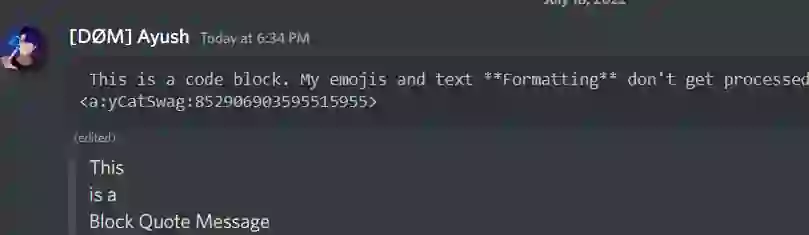

discord text box, code block

How to create a quote block in Discord? The syntax to use Block Quotes is > or >>> followed by a space. Use > for single lines and >>> for multiline Block Quotes. Use it to highlight your texts and stand out from the crowd. Press the shift key to start writing on a new line.


3. Spoilers


How to hide text in Discord? Want to hide your texts/images and make it overwhelming for others to click on them? Then try using the spoilers on Discord. This will turn your plain texts/images into spoilers.


You can mark a link as spoilers by adding the two bars on the front and back of the URL.

Example Link: || I am Inside a spoiler ||

discord spoiler, discord image attachment

Use the eye icon to hide your image and mark them as spoilers. You can re-hide all spoilers revealed by leaving the channel, but keep in mind that you can never unsee what you have seen.


4. Colored Code Blocks


Multiple color code blocks in discord texts can be used to change text color. We can do them in a single line code block or multiple line code blocks. You can use it to highlight syntax or your statements and make more people read them.


How to color text in Discord?
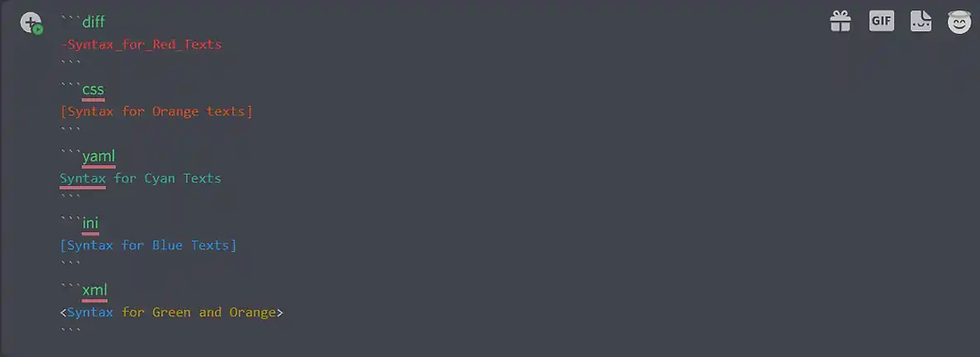
discord code blocks
 discord text formatting

"`diff

-Syntax_for_Red_Texts

```

"`css

[Syntax for Orange texts]

```

"`yaml

Syntax for Cyan Texts

```

"`ini

[Syntax for Blue Texts]

```

"`xml

<Syntax for Blue and Orange>

```


This is the easiest way and fastest way to change text colors on Discord. Copy the above code, change the text, and flex with your friends.😎


More advanced colored text tricks are shown below.


5. Invisible Text Trick


How to write invisible text in Discord? The discord development team uses a link for testing purposes. It makes your text message invisible.


Copy https://canary.discordapp.com/__development/link/ and paste it


Example:

Invisible text Discord


Discord Developers use this link to give out test versions of Discord. You can also paste it multiple times to make a whole chat invisible and make others look like the chat got bugged. Try to perform this trick when the chats are inactive, as you'll need to send multiple messages simultaneously.


6. Time Formatting


How to type times and dates on Discord


Want all your friends to know what time your thing/event is at without the cluttering of them converting timezones? Then use the timestamp formatting feature and stand out from the crowd and let everyone know the exact time of your events at their fingertips.


A discord TimeStamp uses Unix code which can be generated here.

You can learn more about Unix time here.


How to use Timestamps on Discord?


Just copy the code from a UNIX converter site, as shown below.

Discord code: Add a <t: and specify the exact time :d> for month/day/year or :t> for time.

There are some more which are mentioned below.


Example:

Discord Time Formatting


This helps you to specify the exact date and time, including the seconds.

Here's a detailed table for it:

​Discord Format

Unix Format

Month/Day/Year

<t:123456789:d>

Month Day, Year Time

<t:123456789:f>

Time

<t:123456789:t>

Month Day, Year

<t:123456789:D>

Weekday, Month Day, Year Time

<t:123456789:F>

Time since

<t:123456789:R>

Hours:Minutes:Seconds

<t:123456789:T>


Advanced Discord Text Tricks


Yeah, there are some advanced text tricks such as embed links, Edited text tricks, Highlighting Texts, and much more. Let's go through them one by one.


7. Blank Edited Text Trick


How to send invisible text in Discord?

Yes, you can do this trick. It's simple; follow the steps below:

  1. Copy the blank character from here (Also known as Unicode Right to Left Embed)

  2. Paste the text in your discord text box and send

  3. Edit the text and paste the Unicode character again

  4. Save edit

That's it. Now it'll appear as a blank edited text as shown below

Example:

Discord text box


Tip: You can also use it to move the edited icon in the middle of your texts. Copy the blank character, paste it in the middle of your message while editing it, and save the edit.


8. How to color text Green and Grey in Discord using Yaml


By using the YAML text, you can add Green color texts and Grey or just Grey texts after using a # after the three backticks and the YAML markdown.


Markdown:


"`yaml

This is a green text # From here, Grey starts.

```


9. How to color text yellow and cyan in Discord using fix


To change the color of texts to yellow and Cyan, we'll use the fix markdown. Start with three backticks, then add a fix and, on a new line, the text you want to add. Default it'll be Yellow as we have seen earlier. Any text written after = sign will change to Cyan.


Discord Markdown:


"`fix

This is the Yellow text = texts will turn into Cyan in the same message.

```


10. How to color text orange in Discord using cs


This is another way of changing the discord text color to orange. Earlier, we saw how to change the color to orange using CSS Syntax, which sometimes may not work. If it doesn't work, try this one.

To use it, you need to add a # after the three backticks, which will turn the color orange.


Discord Markdown:


"`cs

# This text will be in Orange Color

```


11. Highlight Texts using Highlight.js


Highlight.js is a syntax highlighter that is written in JavaScript. This code can work in most browsers as well as on servers. This can work with any markups and doesn't depend on frameworks. For this, you must create a block and wrap your texts with specific symbols to make them work.

12. Aesthetic text fonts


You can easily create aesthetic texts, which are commonly used in YouTube video titles, Vaporwave-style text, and on Discord too. You can do this texting trick by using a text font generator.


If you search text font generator, you'll get a list of websites offering unique text arts. You have to add your text in the input bar and easily copy & paste hundreds of text arts on Discord.


Here are some websites offering aesthetic text fonts.

  1. Cool Symbol (Link)

  2. Lingojam (Link)

  3. Picsart (Link)

Hundreds of unique fonts are available, including monospace, cursive handwriting, and aesthetic fonts. I would definitely recommend taking a look at all the designs available.


13. Text Glyphs


Aside from standard free emojis, you can also use text glyphs to decorate your messages. This is one of the easiest discord text tricks. Text Glyphs are Unicode symbols that can create text emojis, such as for stars we can make ★ or ✩.


A list of whole Unicode symbols/glyphs can be found on the Wikipedia page here. You can find the official name, HTML name, and Unicode name on the Wikipedia page.


Some examples are:

  1. Star Glyphs: ☆★✩★

  2. Weather Glyphs; ☀ ☁ ☂

  3. Arrows: ➪⇾ ➤

You can easily copy and paste all these symbols from the Wikipedia page given above.


14. Protocol Links


How to type Protocol Links on Discord

A protocol link is used to make a device perform an action. You can use these protocols links to send links that will perform an action like you can make others open your Discord profile or your Spotify profile, steam, and much more.


Example: <steam://> will open the steam application


steam on discord

And when someone tries to open the link, Discord will show a popup showing that the link may open an application on your computer.


protocol link on discord

Here's a list of the most used protocol links:

​Protocol Link

Action

​<steam://>

Opens Steam

​<spotify://>

Opens Spotify

<https://>

Opens Default Browser

<discord://discordapp.com/channels/@me>

Opens Friend List

​<discord://discordapp.com/user>

Opens a User Profile

<skype://>

Opens Skype

​<tel://1212>

​Calls the number specified

To make a protocol function properly, you'll need to add < at the beginning and > at the end of the link. You can open any application by specifying it on the left side, i.e., before the :// and on the right side, you can link that application as shown above.

15. HyperLinks


How to add hyperlinks in Discord chat?


A hyperlink is an HTML element that lets you link a webpage on your embed with anchor text. Adding a hyperlink is quite simple. But it only works on embeds sent by bots or using webhooks.

Let's see how you can add a hyperlink to your embed:


Method #1: Adding Hyperlinks using Discohook


Discohook is an embed-creating tool that allows you to send webhooks on Discord by using a webhook URL. This powerful tool can mention roles, including everyone's ping.


Here's a quick overview of how you can create an embed in Discohook:

how to use discohook

  1. Get a webhook URL link from your Discord server settings.

  2. Open Discohook.

  3. Paste the webhook URL in the URL field.

  4. Enter your Description.

  5. Create an embed by adding some text.

  6. Customize the embed according to the needs.

  7. Click on the "Send" button to send the embed in the specified channel.

In the future, we'll see a detailed guide on how to create an embed in Discord.


Method #2: Adding Hyperlinks using a Bot (Mee6)


Mee6 is an all-in-one multi-purpose bot used in most of the Discord servers for moderation, reaction roles, and embeds.

ree

You'll need Mee6 premium, a premium feature, to create an amazing embed. Mee6 eases the complexity of creating a Discord embed by using its embed builder.


This builder offers us to customize our embeds in every way possible. You can customize the color of your embed, add a header/footer, and images in your embed and send them to your Discord channel in just one click.


This is one of the easiest methods to create an embed. The only drawback is you have to subscribe to mee6 premium to create these amazing embeds. It's worth it.


16. Secret Discord Text Trick


This is a trick mostly used by server owners to create embeds though only a few know it. Let's see how to do it.


Below is an example of how you can embed a website without showing the link in the text.

Discord-embed-without-bot

I can assure only a few users know about this trick. You can use these while creating your message or adding an announcement of an event on your site.


You can also use this embed to share your YT links on servers.

Now, let's see how to do it:


Copy the code below:


**Heading text goes here**
||​||||​||||​||||​||||​||||​||||​||||​||||​||||​||||​||||​||||​||||​||||​||||​||||​||||​||||​||||​||||​||||​||||​||||​||||​||||​||||​||||​||||​||||​||||​||||​||||​||||​||||​||||​||||​||||​||||​||||​||||​||||​||||​||||​||||​||||​||||​||||​||||​||||​||||​||||​||||​||||​||||​||||​||||​||||​||||​||||​||||​||||​||||​||||​||||​||||​||||​||||​||||​||||​||||​||||​||||​||||​||||​||||​||||​||||​||||​||||​||||​||||​||||​||||​||||​||||​||||​||||​||||​||||​||||​||||​||||​||||​||||​||||​||||​||||​||||​||||​||||​||||​||||​||||​||||​||||​||||​||||​||||​||||​||||​||||​||||​||||​||||​||||​||||​||||​||||​||||​||||​||||​||||​||||​||||​||||​||||​||||​||||​||||​||||​||||​||||​||||​||||​||||​||||​||||​||||​||||​||||​||||​||||​||||​||||​||||​||||​||||​||||​||||​||||​||||​||||​||||​||||​||||​||||​||||​||||​||||​||||​||||​||||​||||​||||​||||​||||​||||​||||​||||​||||​||||​||||​||||​||||​||||​||||​||||​||||​||||​||||​||||​||||​||||​||||​||||​||||​||||​||||​||||​||||​||||​||||​||||​||||​||||​||||​||||​|||||||||||| Link_Goes_Here

Replace the header with anything you want though it's optional. After that add your link at the bottom and send the text when done.


It'll take a second or two to load the embed from the site and it'll be visible for everyone. And now your friends can directly visit your site or YouTube video by just clicking on the embed.


Now It's Your Turn


And you get the idea! Now you're a Discord text markdown expert. Get out there and highlight your statements!


I know I haven't completed all the text tricks. If there are any in your mind, comment below and let us know.


Also, read - Top Anime Series You Should Watch On Netflix Right Now - 2022


FAQ


What is Markdown in Discord?

Markdown is basically a simple syntax that formats text as headers, lists, boldface, and so on. This markup language is popular, and it is definitely supported on Discord. We have covered the basic markdown commands in our guide here.


How to make fancy text in Discord?

Discord does not have any Text formatting Style Tools in it. However, you have to use some syntax to make your text fancy. Just check out some of the Discord text commands above.


How to do text formatting in Discord?

Surprisingly there are many ways to format a text on Discord. Like you can color them up, change fonts, bold, Italicize, Strikethrough Strikethrough, etc. We have covered each one of them in this guide.


How to Change Text Color in Discord?

You can change the colors of your texts by using some markdown languages that we have listed above. It's straightforward.


How to change the font in Discord chat?

Changing fonts is not possible directly within the Discord app, and there are no font commands on Discord, but you can use a font generator and paste the changed fonts into the Discord chat. We have listed some great aesthetic font generators in this guide.


How to hide text in Discord chat?

Hiding texts is quite simple in Discord. You can use the spoiler command listed here to hide your texts and images. Or you can type '/spoiler' at the start and end of the text, and it will be displayed as a spoiler.


Can you use HTML in Discord?

Yes, it is possible to use HTML in Discord. And if you want to send someone an HTML code, then follow the steps below:

  1. Copy the HTML code you want to share.

  2. Head over to your Discord chat and paste the code.

  3. Add three backticks ``` at the start and end of your code and click on send.

In this way, Discord will skip all the escape characters and will transfer your HTML code as it is to the other person.


Here are some cool tricks you can use to enhance your text messages on Discord:

​Text Trick

Details

​1. Aesthetic text

​You can use the font generator given above to apply aesthetic fonts

2. Text Glyphs

Add cool text glyphs to your messages to make them stand out.

​3. Blue text

​You can make your text look blue by using code formatting above.

​4. Italic text

Apply italic effects to your text by adding one asterisk before and after your message

5. Green text

​Make your text green with code formatting given above

6. Warm text colors

Add red and orange text through code formatting by using the glsl and diff keywords.

7. Underlined Text

Emphasize words by adding two underscore before and after your message to create underlined text.

8. Bold Text

Create bold text by adding two asterisks before and after your message.

9. Code formatting

Use code formatting to format your code and make it look more organized.


discord message logger

Discord - The chat for gamers is now being used by millions of users for free text & voice communications with friends, diverse communities, and developers. If you have used Discord, you'll probably know that Discord doesn't let you see deleted messages. And if you are looking for a solution on how to get a chat logger on Discord, then you must check our helpful tips and tricks listed in this guide that will help you see deleted messages on Discord.


Discord claims that once a user deletes a message, it is removed from the system permanently. However, that's not true, as it's said that whatever you put on the internet is there forever.


This guide will show you how you can see deleted messages on Discord using simple tricks.


So let's get started.


Is it possible to see Deleted messages in Discord?


Unfortunately, once a message is deleted, there is no official way to recover it, as per Discord. But there are a few ways using which you can recover or see deleted on Discord. There are various chat loggers available that you can add to your server to see deleted messages.


Although, if you want to see deleted messages in your DMs, then you'll need to install the message logger plugin through BetterDiscord. The process can be a little complex if you are not a computer geek, but in this detailed guide, we'll try to make things as simple as possible.


How to use BetterDiscord message logger?


To use BetterDiscord's message logger plugin, you'll need to set a few things up. Note that using BetterDiscord is against Discord's TOS as it violates some of their terms of service. Using BetterDiscord may result in account termination.


#1 Download BetterDiscord


BetterDiscord is an enhancement project which is used to reinforce the performance of Discord by giving its users the superpowers to use Javascript, change themes, use Twitch emotes, and make changes in the normal Discord application.


To install BetterDiscord, you'll need to be on the desktop version of the Discord app.

  1. Head over to the official site of BetterDiscord and download the application.

  2. Allow the License and click on "install" from the available options.

  3. You'll see three different versions of Discord, i.e., Discord, Discord PTB, and Discord canary.

  4. Simply choose the "Discord" option

  5. Click install, and your Discord will restart with BetterDiscord installed.


BetterDiscord has over 20 million users and provides manually verified plugins for malicious code. Make sure to download the plugins from their official repository to be safe from hackers.


#2 Install Message Logger V2


Message logger V2 is a verified BetterDiscord plugin that saves all deleted and purged messages and all edit history and ghost pings. With highly configurable ignore options and even restoring deleted messages after restarting Discord.

  1. Visit the GitHub repository for Message Logger

  2. Download the plugin

  3. Extract the file

After downloading the message logger plugin, now you'll have to install it in your BetterDiscord application. Let's see how to install the plugin.


#3 Enable the Message Logger plugin in BetterDiscord

Once you have installed the plugin, you'll need to add it to your BetterDiscord plugin directory. Here's how you can add the plugin in BetterDiscord:

  1. Open the Discord app

  2. Click on the "gear" icon and open the "user settings"

  3. Click on the "BetterDiscord" header

  4. Open the plugins directory

  5. Choose the "Message Logger" folder

  6. Click on "Add plugin"

  7. Go back and enable the "Message logger V2" plugin

Make sure to enable the plugin when you're done adding it. If you see a Missing library option

then click on the "Download Now" option to install the missing libraries and to make your plugin work.


#4 Select the server and view logs


Now you have successfully installed the Message Logger V2 plugin. Let's see how to use it:

First, you'll have to choose the server on which you want to view deleted messages.

  1. Right-click on server settings

  2. Choose the "open logs" options

  3. Here you can choose from deleted, edited, purged, and ghost pings option

  4. Choose the tab you want to view.

Now you can view almost all message events in a server without admin permissions or add a logger bot in the servers. But note that although BetterDiscord has around 20 million users, it's against Discord's Terms of Service. So use it at your own risk.


Other Methods To See Deleted Messages In Discord


There are various other methods that you can use to see deleted messages or to see chat logs. if you are a server admin, you can use multiple bots that are available to log chats on your server.


In this Guide, we have listed some of the most used chat loggers and moderation bots. Let's see each of them one by one.


Chat Logger Bot


As the name suggests chat logger bot is specifically used to log chats in a server. This easy-to-use moderation bot requires little to no permissions, i.e., webhook, add reactions and manage messages permission.

The chat logger bot is an advanced logging bot that also logs the user's id who deleted or edited the message. Let's see how to set up the Chat Logger bot:

  1. Invite the bot to your server

  2. Set permissions (No need to give admin)

  3. Create a channel where you want the chats to be logged (# logs)

  4. Use the slash command "/setlogs" in the logs channel

And that's it. The bot will now log every message on your server. Alternatively, you can disable logs for private channels by using the command "/setlogs 0" in that specific channel so that the bot will not log messages in that channel.


Dyno (Moderation Bot)


Dyno is a multipurpose moderation bot that you are probably familiar with. Now let's see how you can use this bot as a message logger for your server.


The process is quite simple. Follow the steps below;

how to see deleted messages on discord

  1. Invite the Dyno bot to your server

  2. On their site, you'll see a "Login with Discord" option

  3. Once you are logged in, select your server

  4. In the server dashboard, enable the "Action Log" module

  5. Select the log channel

  6. Choose the type of message you want to log, i.e., message deleted/edited.


Once you set up the dashboard, you don't need to save anything as it's auto-saved. Now the bot will start logging messages of your server in that message logger channel.


How To See Deleted Discord Messages Using Synced Notifications?


There are various notification saver apps available on the PlayStore and AppStore that you can use to save your direct message notification and see them even after the user deletes them.


We have listed some of the best working notification-saver apps here:


#1 Notification History - Recover Deleted Messages


Notification History is a free app that saves all the notifications that you receive on your phone. You can view all the saved notifications by tapping on the line menu. There is also a feature to sort those notifications by time range.


And to erase the notifications, just tap on the trash icon that will clear all the notifications saved by the app. The major drawback of this app is that it contains loads of ads that you can remove by purchasing their premium plan, which costs around $5.


#2 Recent Notification


Recent notification is another popular notification saver app having 5 million plus downloads. This app provides loads of features to sort the notification you have received, including app grouping and choosing between light and dark modes.


You can group your notifications so that if you want to see notifications from telegram, you can open the telegram group. You can also set a time limit in which your saved notifications will be auto-deleted to free up space.


The quick find option can be used to find notifications of previous weeks by just sorting the list. If your notification comes with a picture, the app also saves that picture. That's one of the best features of this app.


Using these notification-saver apps means you don't have to worry about losing a notification even if the sender deletes that message. All the apps listed above are free to use with in-app purchases to access premium features.


FAQ


How to see deleted messages on Discord mobile?

The best way to see deleted messages on Discord mobile is to use a notification logger application. You can use the notification-saver apps listed above. As BetterDiscord won't work on mobile devices, the best way is to use a notification logger to see deleted messages on Discord mobile.


Are message loggers against Discord TOS?

Yes, message loggers, including the BetterDiscord application, are against the Discord terms of service as they manipulate the original code of the application. Using a message logger may result in account termination.


Does Discord audit log shows deleted messages?

Yes, if you are a server admin, you'll be able to access the server audit logs, where you can recently delete and edit messages in that specific server.


Are deleted messages gone forever?

According to Discord, when messages are deleted, they are permanently wiped away. But using the methods listed in our guide, you'll be able to see and save deleted in your Discord application.


Can server owners see deleted messages?

Yes, if the server has a message logger bot enabled, then the server owners can see deleted or edited messages on their server. They can also use the native Discord "audit logs" feature to see recently deleted messages on their server.


If you are looking for a solution on how to stream Valorant voice chat on Discord, then you are at the perfect place. We have listed all the possible questions and solutions in this guide to help you hear Valorant comms on Discord.


Is it possible to stream Valorant voice chat on Discord? While streaming games like GTA or Valorant, you may have issues streaming your in-game voice chat. You may not hear the chat in the Discord stream when you have push-to-talk enabled or talk and mute in the game.


This issue might occur because of various reasons. Hearing the Valorant comms is essential as it allows the viewers to understand what is happening in the game.


How to hear Valorant comms in Discord Stream?


how to hear valorant comms in Discord stream

If you have multiple voice input and output devices, it's better to check if your windows settings are applied correctly. Check if both Discord and Valorant use the same microphone and if both applications use the same output device.


Check the audio levels and set them according to the needs. If all settings are well set, you can try our second method to fix the Valorant comms issue.


How to make Discord stream hear the game voice chat?

how to hear valorant voice chat in Discord stream

To make your stream viewers hear your in-game voice chat, you can follow the step below to fix the comms issue:

  1. Run Discord as Administrator

  2. Close all other apps using input devices

  3. Update the activity status manually

  4. Reset all voice settings of the Discord app

  5. Turn on all the options available in the "Screenshare" Menu

  6. Reset your audio drivers

And that's it. That should fix your Valorant voice chat issue on Discord. If the issue persists, you can continue reading this post, as we have mentioned more methods to fix your problems.


How to stream audio from Discord app on your Computer?


If you are trying to stream audio from your Discord app, you'll need to toggle the "Sound" option in your Discord voice settings. Note that people will also be able to hear you from your microphone.


When you are ready, choose "Go Live" so other viewers can see you. Now you are all set! Invite your friends by creating an invite in that voice channel.


Why I cannot use voice chat in Valorant?


If you cannot use voice chat in Valorant, you'll need to check if your voice inputs are connected correctly.


Here's how you can do it:

  1. Open Valorant settings

  2. Click on "Audio"

  3. Hover on "Input devices."

  4. Check if the microphone is showing up

  5. Select your microphone

  6. Set incoming volume accordingly

  7. Click on "Close Settings"

This should immediately apply the settings, and you will be able to use voice chat in Valorant. If it doesn't connect to your microphone, then restart the game.


How to stream Valorant in Discord without Lagging?


If your viewers are experiencing screen delays while streaming Valorant in Discord, then you will need to enable Hardware acceleration from the Discord Settings.


Here's how to do it:


  1. Open Discord Settings

  2. Click on the "Advanced" menu

  3. Toggle "Hardware Acceleration" OFF

Discord hardware acceleration

Hardware acceleration uses your GPU to make Discord run smoother. Turning this off decreases your load on GPU and makes your game experience faster. This also helps to stream games without frame lag.


Why can't I hear Valorant voice chat on Discord screen share?


If you cannot hear Valorant voice chat on your Discord screen share, then the easiest fix for this is to run the game in "Administrator mode." This gives the game all the required permissions to add in-game voice in the Stream.


You run the game in administrator mode by simply right-clicking the game and clicking on the "Run as Administrator" button.


This should fix the game voice chat issue. If the issue persists, you can try other methods listed in this post.

What is HRTF in Valorant?


HRTF in Valorant is used as audio enhancements that were added as patch 2.06 in the game to improve the spatial audio.

If you already have any 3D enhancements or surround sound software, you'll need to disable them to avoid any audio issues in Valorant.


How to stream Discord in another Discord?


If you are trying to stream Discord in another Discord application, you can do this by turning on Stream on the Discord app and another stream on the Discord web app.


Here's how to do it:

  1. Open the Discord app and go live

  2. Open your default browser

  3. Search for Discord

  4. Click on "Open Discord in my web browser."

  5. Join the same Voice chat

  6. Click on Go Live

This is a bug and recently got fixed by Discord. But it still works on some devices. You can try your luck.


Discord and Valorant voice chat issue


I can hear my teammates, but my voice doesn't reach them.


If you can hear your teammates but your teammates cannot hear you, then it may be cause your microphone is not connected correctly. The first thing to check is your input device. You can do this on Discord and Valorant by entering Settings > Audio > Input Devices.


Ensure that the applications are not using the default microphone, as they may have issues. The second you can do is to exclude your applications from Antivirus scanning.

Here's how you can exclude your apps from antivirus scanning:


  1. Open your Antivirus applications such as Kaspersky, Avast, McAfee, etc.

  2. Head over to Virus & Threat Protection settings.

  3. Now click on Add Exclusions.

  4. Now, Add Discord & Valorant and save the settings

  5. Now restart your PC.


Why does my Discord stream have no sound?


This can be a cause of several issues. In some cases, the issue appears when you try to stream an application or game in full screen. Due to this, the application's sound is not detected by Discord. You can fix it by using the application in a minimized mode.


Alternatively, you can choose a speaker as an output device and an external microphone as your input device. In this way, your game audio will be transmitted from the speaker to your viewers via a microphone.


Another issue can be your faulty audio driver. One of the most common issues you can quickly fix is updating your Windows drivers manually by downloading them from the official site or using the "automatically update" driver features.


Discord stream stuck on loading or not loading


If your DIscord stream is stuck on the loading screen, then you can try the following steps to solve your issue:

  1. Restart your computer

  2. Run Discord as an administrator

  3. Turn off your antivirus program

  4. Clear Discord file cache

  5. Turn off Hardware Graphic acceleration from Discord settings

  6. Check your internet connection speed

  7. Reinstall Discord

These methods should solve your issues. If the issue persists, you can try streaming on a different device to check if it's a hardware issue. If it's not working on any system, you should try contacting the Discord support team to solve your issue.


How do I fix stream buffering?


If you are having issues with stream buffering, then there are chances that your internet connection is not fast enough to load that stream. The best you can do is to restart your Wifi router or turn on airplane mode on your mobile phone and then turn it off.


discord voice region change

Alternatively, you can ask an admin to change the voice region to your country so you'll have less ping and you won't face any issues while using the voice chat. Note that only that specific chat will be transferred to your region, so there are chances that you may face the same issue in other voice channels.


bottom of page